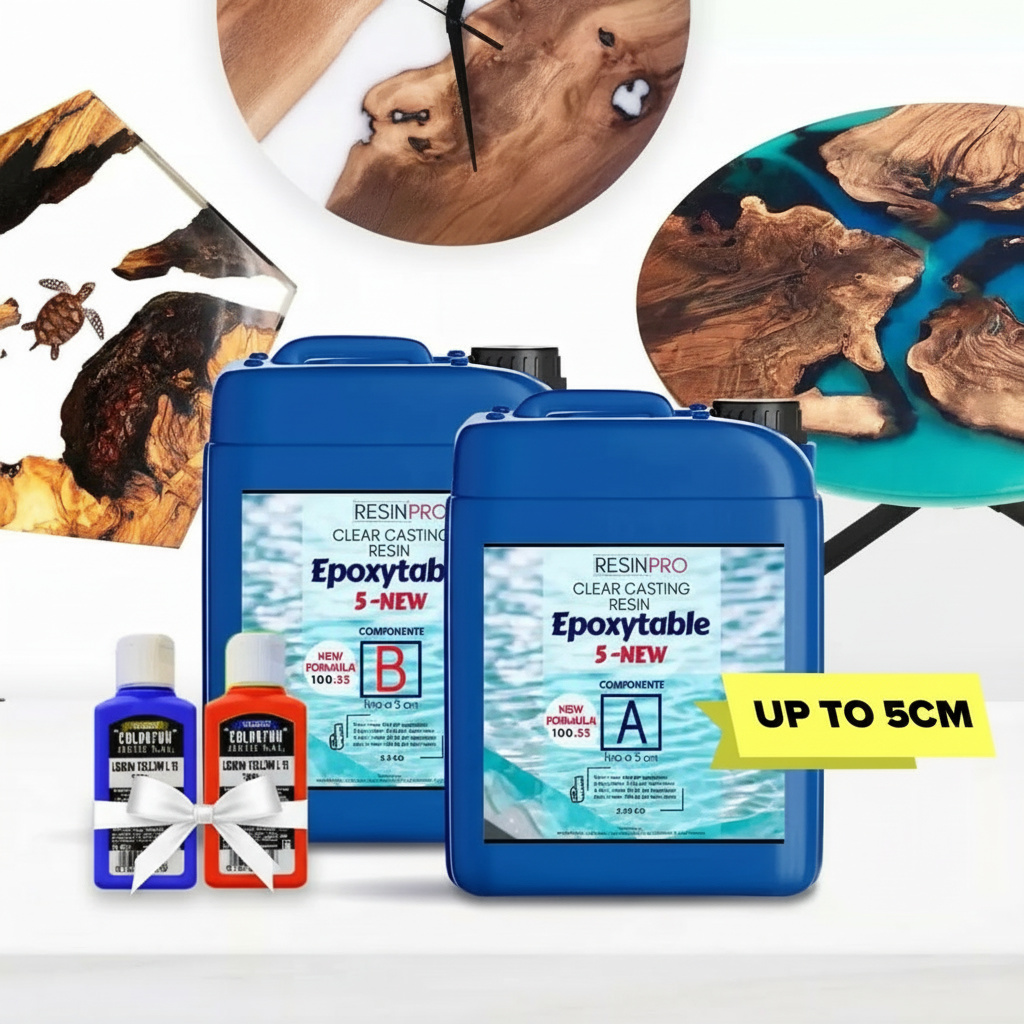
The best choice for Resin and Geode-art, making Coasters, Trays, Ocean-art, jewellery and casting surfaces.
+ gloves & detailed instruction for FREE.
£33.85
The best choice for deep pouring:
✔️ Low exothermic reaction –> Castings up to 5cm [1,96”]
✔️ Strong UV filters –> Non-yellowing guaranteed for 5 years
✔️ Highly mechanical resistant surface, for maximum scratchproof properties
✔️ Low viscosity –> Bubbles free
✔️ Long working time –> No rush in the process
✔️ Heat resistance –> Up to 70°C [158 F]
✔️ Trusted quality –> We have already sold more than 26000 kits of this product, since we started in 2015
🌿 Cruelty Free, Vegan Friendly🐹
£16.85
✔️ Perfect transparency -> A true liquid crystal
✔️ High scratch resistance -> Ideal for tables!
✔️ UV filter for protection against yellowing -> 10 years warranty.
✔️ Heat Resistance (Up to 70°C)
✔️ Easy to use -> 2:1 mixing ratio
✔️ Odourless
✔️ 1,5сm layer per application
🌿 Cruelty Free, Vegan Friendly🐹
£11.65
Experience the brilliance of 'Art Pro', an ultra-clear, non-toxic epoxy resin designed specifically for artists and DIY enthusiasts. Perfect for a variety of resin art projects/p>
£19.85
Intense and brilliant colour, ideal for Transparent Epoxy Resins. Mix small quantity to get a translucent effect. The high coverage of the "Colorfun Original" range allows to obtain a full and bright colour. The high concentration provides an opaque colour with a few drops. Usable to colour the products of the RESIN PRO range.
£13.45
“I-GUM SLOW” – Non-Toxic Silicone Rubber – Paste Form
Pasty silicone rubber “I-GUM” is a two–component product for creating moulds and forms for pouring with epoxy resin.
£22.85
Create your moulds using PURE MOLD silicone rubber! Compatible with many materials including resins, plaster and cement. Its transparency will allow you to observe through the mould and its high mechanical characteristics make it a product suitable for both professional and hobby use.
£22.45
EPOXY POLISH is an advanced epoxy resin polishing system that delivers a stunning, glossy finish for your resin projects. Ideal for professionals and DIY enthusiasts alike, this product rejuvenates surfaces to a mirror-like shine with ease.
£17.85
How to Remove Floor Lines in Revit 3Dlt/titlegt
To remove floor lines in Revit in the 3D model, you need to follow these steps
- Select the floor in your Revit project
- Go to the "Modify" tab on the ribbon bar
- Click on "Edit Profile" to modify the shape of the floor
- Select the floor line you want to remove
- Press the "Delete" key on the keyboard to eliminate the selected line
- Repeat the process for all floor lines you want to remove
- Finally, exit the profile editing mode to view the floor without the removed lines in the 3D model
lt/ulgtDelete Floor Line in Revit 3D
To delete a floor line in Revit 3D, follow these steps
Select the 3D view where you want to delete the floor lineClick on the "Edit" option in the top menu barSelect the "Explode" option to access different parts of the modelLocate the floor line you want to removeSelect the floor line by clicking on itPress the "Delete" key on the keyboard or right-click and select "Delete" to remove the floor lineOnce the floor line is deleted, exit the editing mode and save the changes made to the model
By following these steps, you can successfully remove the desired floor line in the 3D view of the model in Revit
lt/ulgt
Removing Floor Line in Revit 3D
To remove a floor line in Revit 3D, you need to follow a few steps. First, select the floor containing the line you want to eliminate. Then, enter the floor editing mode and locate the line to be removed. Using editing tools such as "Split Element" or "Trim and Extend," you can cut the line from the floor. Ensure the modification is done correctly and does not impact the overall structure of the floor. Finally, save the changes made to the model. This process will allow you to precisely and accurately eliminate the floor line within the Revit 3D modeling environmentlt/pgt
How to Delete Floor Line in Revit 3D
To delete a floor line in Revit 3D, follow these steps
Select the floor you want to modifyRight-click on the selected floorFrom the drop-down menu, choose "Edit Element" optionOnce the floor is in edit mode, locate the line you want to deleteSelect the line by clicking on itPress the "Delete" key on the keyboard or use the "Delete" option from the editing menuThe floor line will be removed from your Revit 3D project
Remember to save the changes to ensure the floor line deletion is done correctly
lt/ulgt
Intense and brilliant colour, ideal for Transparent Epoxy Resins. Mix small quantity to get a translucent effect. The high coverage of the "Colorfun Original" range allows to obtain a full and bright colour. The high concentration provides an opaque colour with a few drops. Usable to colour the products of the RESIN PRO range.
£13.45
“I-GUM SLOW” – Non-Toxic Silicone Rubber – Paste Form
Pasty silicone rubber “I-GUM” is a two–component product for creating moulds and forms for pouring with epoxy resin.
£22.85
Create your moulds using PURE MOLD silicone rubber! Compatible with many materials including resins, plaster and cement. Its transparency will allow you to observe through the mould and its high mechanical characteristics make it a product suitable for both professional and hobby use.
£22.45
EPOXY POLISH is an advanced epoxy resin polishing system that delivers a stunning, glossy finish for your resin projects. Ideal for professionals and DIY enthusiasts alike, this product rejuvenates surfaces to a mirror-like shine with ease.
£17.85
ResinPro: one supplier for all your needs
15 years of experience at your complete disposal, supplying resins and accessories for creativity, industry, DIY, flooring and marine applications.
At your home, directly from the manufacturer!
ResinPro is the direct manufacturer of our resin range for companies and hobbyists, guaranteeing the lowest prices on the market.
Learn moreThe widest range of resins in the UK!
We offer resins for every need, from artistic creations to marine and construction applications, far beyond the “limited” selection typically found in local DIY stores.
Expert technical support!
Our technicians provide free remote consulting to help you avoid mistakes and ensure you achieve the result you want — unlike “generic retailers” who sell 1,000 different products.
get a free consultationRESIN PRO is a leader in resin production and distribution!
24-hour delivery: We ship across the UK on the same day. Enjoy convenient home delivery with our appointment service—our courier will contact you in advance and deliver the package to your preferred location, or leave it at an alternative address of your choice.

Full support!
We provide continuous support from preparation to final application, including remote technical assistance, ensuring a smooth experience.
Talk with a specialist and place a phone order without registration and without credit cards!
 Free shipping on orders over £29,85
  Shipping Tracking!


 Google
 Facebook